I'm sure many have started the calculations. :)
LHDN has came up with their new BE2010 format, therefore i have also updated mine to incorporate the minor changes. Nothing much, hope you find this useful.
You can download the latest Borang BE2010 calculator HERE
Let me know if you find any errors as well as if you find it useful! Thanks guys.
P/S: If you need additional info on the new BE2010, head on to LHDN website or you can download the sample form and its explanations HERE

2011-02-21
Nokia E71: Search contacts in phonebook by keying in numbers using Quickfind app
When you receive "misscall sms", or when a friend asks you to check a number, or when you want to check a redundant number/contact in your phonebook, it is always a chore - you'd have to dial the number and see if a name comes out on the screen, and the need to cancel the call just in time before it actually connects. I find it troublesome!
Well, i'm glad i found this very useful app - Qfind v1.20 (Qfind Contact Search - visit their website for more info). It is a JAR or java application so any other phone with java support will be able to use this app, i guess. It lets you search a contact in your phonebook by just keying in the phone number, that way you will be able to see if a contact number is saved twice with different names, and you can check if a certain number exists in your phonebook without the need to try dialling it! Neat, huh? Qfind is truly a quick finding application.
Well it seems the app was no longer developed since quite sometime ago, so it may not worked its best with a Nokia E71 (or qwerty keyboard for the matter - alphabet search does not work) but it still does the job nonetheless.
You can download it from HERE, as always... :)
Now for a brief guide on how to use it (read carefully as this is important):-
1. Upon starting up the app, you will be asked/prompted about allowing the software to access your phone, so just accept / press 'yes' to all the prompts.
2. Once the app is running, you will see the main screen with your phone book list shown on the screen and a top bar which is to be used to key in the numbers.
3. Note there's an "#abc" tag at the bottom bar. I suppose its used to key in 'alphabets' but i cannot seem to make it work. Anyway you'll have to press "func (bottom left key) + # (hatch key)" and you will notice the tag changed to "#123". Now i suppose it is to key in 'numbers'.
4. You'll have to press "func" key (bottom left key) TWICE - this is to shift the qwerty keyboard from 'alphabets' to 'numbers' mode.
5. OK now you can key in numbers. :) note that the contact list will change to show the contacts that contains the numbers you typed in.
6. Note that if you want to 'backspace' or delete the numbers, press 'ENTER' key and not the 'backspace' key on your E71 qwerty keyboard. Ackward, huh? Well like i said it was not really developed for qwerty keayboard, i guess.
Hope it works for you. Let me know if you find any problem. Cheers. :)
Well, i'm glad i found this very useful app - Qfind v1.20 (Qfind Contact Search - visit their website for more info). It is a JAR or java application so any other phone with java support will be able to use this app, i guess. It lets you search a contact in your phonebook by just keying in the phone number, that way you will be able to see if a contact number is saved twice with different names, and you can check if a certain number exists in your phonebook without the need to try dialling it! Neat, huh? Qfind is truly a quick finding application.
Well it seems the app was no longer developed since quite sometime ago, so it may not worked its best with a Nokia E71 (or qwerty keyboard for the matter - alphabet search does not work) but it still does the job nonetheless.
You can download it from HERE, as always... :)
Now for a brief guide on how to use it (read carefully as this is important):-
1. Upon starting up the app, you will be asked/prompted about allowing the software to access your phone, so just accept / press 'yes' to all the prompts.
2. Once the app is running, you will see the main screen with your phone book list shown on the screen and a top bar which is to be used to key in the numbers.
3. Note there's an "#abc" tag at the bottom bar. I suppose its used to key in 'alphabets' but i cannot seem to make it work. Anyway you'll have to press "func (bottom left key) + # (hatch key)" and you will notice the tag changed to "#123". Now i suppose it is to key in 'numbers'.
4. You'll have to press "func" key (bottom left key) TWICE - this is to shift the qwerty keyboard from 'alphabets' to 'numbers' mode.
5. OK now you can key in numbers. :) note that the contact list will change to show the contacts that contains the numbers you typed in.
6. Note that if you want to 'backspace' or delete the numbers, press 'ENTER' key and not the 'backspace' key on your E71 qwerty keyboard. Ackward, huh? Well like i said it was not really developed for qwerty keayboard, i guess.
Hope it works for you. Let me know if you find any problem. Cheers. :)
2011-02-14
Nokia E71: Transfer Files using WIFI due to slow data transfer
If you are frustrated with the speed of your Nokia E71's data transfer, well many are sharing the same feeling, i suppose, since i had a similar remark from a friend.
To understand the issue, you may have to consider this:
1. Nokia E71 is using USB1.1 format which has maximum data transfer speed of 12Mbps
2. The newer E72 is using USB2.0 format which has maximum data transfer speed of 480Mbps
Therefore you can understand the significance of the slow data transfer encountered by Nokia E71 users. Note: 'Mbps' stands for Mega Bit per second.
Now for a 'solution', by utlizing the WIFI connection on the E71 which is using 802.11g connection, we can enhance the data transfer speed to a maximum 54Mbps. So how do we use the WIFI connection for data transfer? Well unfortunately such capability does not come built-in, therefore a certain symbian application is needed: SymNC by Telexy Networks. (The application is under 'device networking' > Network Commander) The application is not free, though can be tested before purchase.
Previously this app was known as SymSMB.
Head on to their website to give this application a trial run. Truly worth it!!
To understand the issue, you may have to consider this:
1. Nokia E71 is using USB1.1 format which has maximum data transfer speed of 12Mbps
2. The newer E72 is using USB2.0 format which has maximum data transfer speed of 480Mbps
Therefore you can understand the significance of the slow data transfer encountered by Nokia E71 users. Note: 'Mbps' stands for Mega Bit per second.
Now for a 'solution', by utlizing the WIFI connection on the E71 which is using 802.11g connection, we can enhance the data transfer speed to a maximum 54Mbps. So how do we use the WIFI connection for data transfer? Well unfortunately such capability does not come built-in, therefore a certain symbian application is needed: SymNC by Telexy Networks. (The application is under 'device networking' > Network Commander) The application is not free, though can be tested before purchase.
Previously this app was known as SymSMB.
Head on to their website to give this application a trial run. Truly worth it!!
2010-12-15
LAST CALL FOR MALAYSIAN TAX PAYERS 2010
I have been lazy...very lazy...despite many things i would have wanted to share, i was lazy...and still am..in fact.
In any case, just to highlight that today is the middle of December 2010. That means there is only 2 weeks more to pay, what counts, before you declare your tax next year.
You can check out my calculator to estimate how much is your income tax for this year. You will of course declare it somewhere in April 2011 but all that counts is only what had been transacted in this year 2010..So you can check if you may need to buy some books, sport equipments or even pay your outstanding 'zakat', just be sure to do it before end of the year.
I had for quite some time put on hold my plan to get a new PC/laptop; now seems to be a very good time to lower down the tax a bit... :)
P/S: Check out LHDN website HERE for the tax reliefs for 2010
In any case, just to highlight that today is the middle of December 2010. That means there is only 2 weeks more to pay, what counts, before you declare your tax next year.
You can check out my calculator to estimate how much is your income tax for this year. You will of course declare it somewhere in April 2011 but all that counts is only what had been transacted in this year 2010..So you can check if you may need to buy some books, sport equipments or even pay your outstanding 'zakat', just be sure to do it before end of the year.
I had for quite some time put on hold my plan to get a new PC/laptop; now seems to be a very good time to lower down the tax a bit... :)
P/S: Check out LHDN website HERE for the tax reliefs for 2010
2010-03-18
FontRouter LT: Add Unicode Fonts or change fonts of your E71
Using your symbian phone, have you ever get sms messages with SQUARES in it?? Well, the message isn't corrupted, nor is your phone. It's just symbian's way of saying "i don't recognize the font".
So what do you do when faced with such incident? Well luckily some kind souls had helped to develop this great app called FontRouter LT and also other fun fonts to pair it with, all is well..
1. What you will need is to download THIS. It shall consist of Fontrouter LT app, Dedit app, Freesigner app and also two .ttf files.
2. Plug in your phone to your computer and transfer all the files to your phone. For convenience, just copy either one (only one) of the .ttf file into Memory card @ E:\data\fonts (make the folder if it isn't available)
2. You shall need to sign the FontRouter app (the other apps are already signed). If you don't know how to go around this, you can refer to THIS site which has it detailed out. Of course there are other ways to do this, but i prefer the signing from the phone and with cert + key method as it will be convenient in the long run as you can easily sign other apps as well. As for the cert + key, i recommend THIS site which i had acquired my keys personally. It needs a free register and it has english menus. The freesigner app i attached in this kit is just in case you want to sign the app using the methods described from the earlier site given.
3. Once signed, install the fontrouter LT app into your phone. Just ignore any warning messages and proceed with installation. NOTE: INSTALL INTO MEMORY CARD. This is important as some font files may have crash issues with the phone and if you encounter this, simply unplug your memory card and restart phone. If it happens to crash with it on the phone memory, only way out is to hard reset the phone and that would delete all data on the phone.
4. Now install Dedit app. This is to allow editing of .ini files straight away from your phone.
5. Once done, open up Memory card @ E:\data\fonts and you will notice there is fontrouter.ini file in it. Open it up and change 'FixFontMetrics' and 'FixCharMetrics' values from '0' to '1'.
6. You're done. Restart your phone and take note of the font changes.
TIPS:-
i. If the fonts are unusually big, open fontrouter.ini and change the value 'ZoomRatio' to a lower value. This works vice versa.
ii. The app can change the font using whatever truetype font file (.ttf); however be wary that some font files have different layouts (especially windows font files) and therefore may not be compatible with your phone. Best is to surf the net for font files developed specially for phones, such as what the kind folks at IPMart Forums are doing. You'll need to be a member (free) to access and download from the site.
iii. For a fast font changing; change value [Global] 'Enable' to '0' and reboot your phone (I use JBAK's reboot option for fastest phone restart). Use activefile to change the fonts in the Memory Card @ E:\data\fonts folder. Change value 'Enable' back to '1' and then reboot your phone. You will then notice that the fonts are changed. Let me know if you know any other better way.
Do you have any other tips? :)
So what do you do when faced with such incident? Well luckily some kind souls had helped to develop this great app called FontRouter LT and also other fun fonts to pair it with, all is well..
1. What you will need is to download THIS. It shall consist of Fontrouter LT app, Dedit app, Freesigner app and also two .ttf files.
2. Plug in your phone to your computer and transfer all the files to your phone. For convenience, just copy either one (only one) of the .ttf file into Memory card @ E:\data\fonts (make the folder if it isn't available)
2. You shall need to sign the FontRouter app (the other apps are already signed). If you don't know how to go around this, you can refer to THIS site which has it detailed out. Of course there are other ways to do this, but i prefer the signing from the phone and with cert + key method as it will be convenient in the long run as you can easily sign other apps as well. As for the cert + key, i recommend THIS site which i had acquired my keys personally. It needs a free register and it has english menus. The freesigner app i attached in this kit is just in case you want to sign the app using the methods described from the earlier site given.
3. Once signed, install the fontrouter LT app into your phone. Just ignore any warning messages and proceed with installation. NOTE: INSTALL INTO MEMORY CARD. This is important as some font files may have crash issues with the phone and if you encounter this, simply unplug your memory card and restart phone. If it happens to crash with it on the phone memory, only way out is to hard reset the phone and that would delete all data on the phone.
4. Now install Dedit app. This is to allow editing of .ini files straight away from your phone.
5. Once done, open up Memory card @ E:\data\fonts and you will notice there is fontrouter.ini file in it. Open it up and change 'FixFontMetrics' and 'FixCharMetrics' values from '0' to '1'.
6. You're done. Restart your phone and take note of the font changes.
TIPS:-
i. If the fonts are unusually big, open fontrouter.ini and change the value 'ZoomRatio' to a lower value. This works vice versa.
ii. The app can change the font using whatever truetype font file (.ttf); however be wary that some font files have different layouts (especially windows font files) and therefore may not be compatible with your phone. Best is to surf the net for font files developed specially for phones, such as what the kind folks at IPMart Forums are doing. You'll need to be a member (free) to access and download from the site.
iii. For a fast font changing; change value [Global] 'Enable' to '0' and reboot your phone (I use JBAK's reboot option for fastest phone restart). Use activefile to change the fonts in the Memory Card @ E:\data\fonts folder. Change value 'Enable' back to '1' and then reboot your phone. You will then notice that the fonts are changed. Let me know if you know any other better way.
Do you have any other tips? :)
2010-03-10
Block / Ban Unwanted Calls Using Your Nokia E71
Did you know that your E71 comes with free apps such as Quickoffice version 6.0, Advanced Call Manager and others?
Well if you ever happened to be harrassed by unknown callers and really need to block/ban unwanted calls from your E71, the application 'Advanced Call Manager' by Webgate JSC works wonders. If you happened to have lost the app, you can download it here.
Install the app into your E71 and onced turned on, you will see this screen:
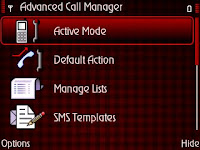
Go to the 'manage lists' and create a new list; i named it 'black' for blacklist.
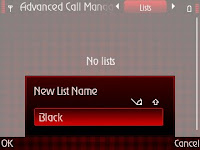
Once the list is done, configure the list by adding 'new' number or if you've saved the numbers, choose them from 'phonebook'; this number shall be the number that you would like to blacklist/block/ban.
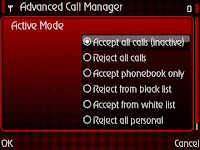
Thereafter, go to 'active mode' and select the active mode - 'reject from black list' option. You shall be asked for a list and you can just select the 'black' list you made earlier.
Go to 'default action' and select the option of your preference; which for me is just 'send busy tone'.
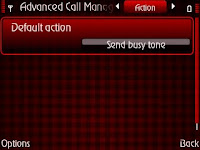
Thats it! You're done. All the numbers in the 'black' list will be handled by the app.
Note that you will need the app to be permanently running in the background. Select 'options>preference' and turn on 'auto run' and 'system application' for the best results.
You can also 'play' with the callers by setting the 'default action' to 'answering machine' and choose a pre-recorded greetings; just in case you are so annoyed by the callers that you want to return the favour.
You should explore the app further and you will notice that it is actually worth using as an answering machine at times where you are busy or in a meeting. It comes with many options and features, profiles and even locator scanner for automated profile changes which should be a very useful tool for business users. The best part is that the recorded messages are in your phone which is easily accessible at any time convenient for you.
Cheers and have fun using this wonderful app.
Well if you ever happened to be harrassed by unknown callers and really need to block/ban unwanted calls from your E71, the application 'Advanced Call Manager' by Webgate JSC works wonders. If you happened to have lost the app, you can download it here.
Install the app into your E71 and onced turned on, you will see this screen:

Go to the 'manage lists' and create a new list; i named it 'black' for blacklist.

Once the list is done, configure the list by adding 'new' number or if you've saved the numbers, choose them from 'phonebook'; this number shall be the number that you would like to blacklist/block/ban.
Thereafter, go to 'active mode' and select the active mode - 'reject from black list' option. You shall be asked for a list and you can just select the 'black' list you made earlier.

Go to 'default action' and select the option of your preference; which for me is just 'send busy tone'.

Thats it! You're done. All the numbers in the 'black' list will be handled by the app.
Note that you will need the app to be permanently running in the background. Select 'options>preference' and turn on 'auto run' and 'system application' for the best results.
You can also 'play' with the callers by setting the 'default action' to 'answering machine' and choose a pre-recorded greetings; just in case you are so annoyed by the callers that you want to return the favour.
You should explore the app further and you will notice that it is actually worth using as an answering machine at times where you are busy or in a meeting. It comes with many options and features, profiles and even locator scanner for automated profile changes which should be a very useful tool for business users. The best part is that the recorded messages are in your phone which is easily accessible at any time convenient for you.
Cheers and have fun using this wonderful app.
Broadband Tax Relief RM500 Year Assesment 2010
So if you didn't know, there is a tax relief of RM500 provided for broadband subscriptions, however it is only applicable for year assesment 2010 which means it is for the broadband subscription from this year onwards. The details as mentioned here under item 20.
That means an allocation of approximately RM41.67 per month.. hmmm i wonder what package is there that covers such a minimum subscription.
If you also didn't know, i'm a streamyx reseller. Hihihi... So if you want to subscribe to a streamyx broadband package to minimize further your income tax, just let me know. I can advice you what you need to register and what packages are offered and may be suitable for you.
Just simply email me here or click 'contact me' from my sidebar.
You still have 9 more months to take advantage of this broadband tax relief for next year income tax filing - year assesment 2010.
Be sure that the account is under your name to avoid any hassle explaining to LHDN if ever you are audited.
That means an allocation of approximately RM41.67 per month.. hmmm i wonder what package is there that covers such a minimum subscription.
Just simply email me here or click 'contact me' from my sidebar.
You still have 9 more months to take advantage of this broadband tax relief for next year income tax filing - year assesment 2010.
Be sure that the account is under your name to avoid any hassle explaining to LHDN if ever you are audited.
2010-02-10
Malaysian Income Tax 2009 (and BE2009 Calculator)
So its just around the corner, eh? I wouldn't dwell too much on it and start the calculations. Not much we can do about it anyway, really.
As LHDN had just released their Borang BE2009 today, i also updated my Borang BE2009 spreadsheet calculator. Not much difference, just a slight change.
But nonetheless, feel free to download it here:
BORANG INCOME TAX BE2009 (Rapidshare)
Let me know if you come into any troubles using this, yeah?
As LHDN had just released their Borang BE2009 today, i also updated my Borang BE2009 spreadsheet calculator. Not much difference, just a slight change.
But nonetheless, feel free to download it here:
BORANG INCOME TAX BE2009 (Rapidshare)
Let me know if you come into any troubles using this, yeah?
2010-02-09
Malaysian Income Tax Year Assessment 2009 (Changes from Year 2008)
If you are starting to look into your income tax, you might want to know that the LHDN's website has a new interface, and even i just noticed this. :)
I'm actually looking for the BE2009 format but it seems that its not yet published. Anyway, i'll just review some of the changes which i find relevant to me, at the very least.
Income Tax Rate
Only changes are for the people in the tax bracket RM35,000 - RM50,000 where the tax rate for year 2009 is 12% compared to the previous 13% and also for people in the tax bracket above RM250,000 where the rate is now 27% as opposed to previous 28%. Others remain.
Tax Relief
No changes for year 2009 but do look forward to assessment year 2010! :)
Tax Rebate
Changed from RM350 to RM400. This is quite useful to most of us, even though it could have been more.
All the above can be referred to at their website HERE. Check it under 'Tax Matters' on the right column.
If the above are the only changes, then my BE2008 calculator can still be used, just change the relevant values in the calculator accordingly and you should be able to calculate your income tax value for year 2009.
I'm actually looking for the BE2009 format but it seems that its not yet published. Anyway, i'll just review some of the changes which i find relevant to me, at the very least.
Income Tax Rate
Only changes are for the people in the tax bracket RM35,000 - RM50,000 where the tax rate for year 2009 is 12% compared to the previous 13% and also for people in the tax bracket above RM250,000 where the rate is now 27% as opposed to previous 28%. Others remain.
Tax Relief
No changes for year 2009 but do look forward to assessment year 2010! :)
Tax Rebate
Changed from RM350 to RM400. This is quite useful to most of us, even though it could have been more.
All the above can be referred to at their website HERE. Check it under 'Tax Matters' on the right column.
If the above are the only changes, then my BE2008 calculator can still be used, just change the relevant values in the calculator accordingly and you should be able to calculate your income tax value for year 2009.
20% Toll Rebate for Touch N' Go users - URGENT!
I'm not sure how many of us do not know about this, but it is such a pity if the eligible folks do not redeem their toll rebate. Check it out now!
So what is this 20% Toll Rebate?
In the 'attempt' to lessen the burden of the people, our Malaysian government had made a scheme where frequent users of the closed highways (or tolled highways) shall get 20% rebate off their toll transactions for the month.
Sadly, there are certain criterias to become eligible for this scheme:-
1. You have to use Touch N' Go (TN'G) cards to be eligible for this scheme
2. You need to make a minimum 80 transactions per month basis
3. Only for Class 1 Vehicles (normal passenger vehicles except those using corporate's Bis Xs / Fleet Xs Cards)
So basically as long as you meet the above criteria, you are eligible to get your 20% rebate.
Head on to their website for further details. This website also allows registration of your TN'G card to track the toll transactions for the month as well as rebate status. It would be most convenient to check this first before you go to the card centers to claim the rebate.
How to claim?
Just go to participating card centers and ask them to credit the rebate into your card, they will credit the 20% rebate into your TN'G card.
When to claim?
This is crucial. It cannot be too early nor can it be too late. Since the rebate is based on 80 transactions per month, you are supposed to be able to claim the rebate within the first week of the following month; however from my experience the transactions are normally not swiftly updated as it normally takes 3-4 working days for the system to update the transactions in their database, so transactions at the end of the month may not yet be reflected in the following month. I'd suggest to claim the rebate from the second week onwards of the following month.
Fret not, the rebate is still yours even if it is not claimed in the following month. This is because the rebate is cumulative, therefore your eligible rebate for this month shall be carried forward to the other months if you do not claim it in the following month.
CAUTION! The rebate amount is only valid for 6 months and must be claimed prior. Since this scheme started on 1st September 2009, and if you just knew about this, i guess you should get to the following service centers soonest possible to claim your rebate, the september 2009's rebate should be invalid by next month (March 2010)
Where to claim the rebate?
TOUCH 'n GO SALES CENTRE
• Faber Towers
• KL Sentral
HIGHWAY SALES CENTRE
PLUS
• Jitra
• Alor Setar Utara
• Pendang
• Sg Petani Selatan
• Sg Dua
• Juru
• Bukit Tambun Selatan
• Jawi
• Taiping Utara
• Kuala Kangsar
• Ipoh Selatan
• Tapah
• Bidor
• Jalan Duta
• Sg Besi
• Batu Tiga
• Sg Rasau
• Damansara
• Subang
• Kota Damansara
• Setia Alam
• Kajang
• Bandar Baru Nilai
• Senawang
• Ayer Keroh
• Yong Peng Utara
• Ayer Itam
• Skudai
• Kempas
BKE
• Kubang Semang
ELITE
• USJ
• Seafield
• KLIA
LINKEDUA
• Taman Perling
PENANG BRIDGE
• Penang Bridge
BORR
• Bagan Ajam
ECE
• Kuantan
METRAMAC
• KL East-West Link (Cheras bound)
PROLINTAS
• Dato' Keramat
BESRAYA
• Mines (South)
SILK
• Sg Balak
NPE
• Pantai Dalam
• PJS 2
• PJS 5
SHAHPADU
• Kapar
LEKAS
• Kajang Selatan
DUKE
• Batu
RECOMMENDATION
Do make sure your family and friends are aware about this, such a waste if this benefit is not claimed.
For those not using Touch N' Go, i cannot see the reason not to use it now. If you're concern over travel claims / receipts, you can register your TN'G card at TN'G E-services to track you card usage and print e-statements for the travel claims. Check with your company if this is acceptable by them for claims purposes.
If you have optional routes when travelling to work, with the same amount of toll value, go for the one with the extra toll booths. For example, i travel daily from Damansara to Bkt Raja, so instead of taking the NKVE (1 toll), i used Federal Highway (2 tolls - Bt Tiga and Sg Rasau); that way i get to make the minimum 80 toll transactions per month. And by the way, i use SmarTAG for the peace of mind and to skip the queues; Trust me, SmarTAG is worth the small investment - time wise!
Register at TN'G website to monitor your toll transactions, if you're slightly short of the 80 transactions, there's always 'cheaper' tolls that you can find just to get the quota. But be sure that the highway is in the 'participating highway' list
So what is this 20% Toll Rebate?
In the 'attempt' to lessen the burden of the people, our Malaysian government had made a scheme where frequent users of the closed highways (or tolled highways) shall get 20% rebate off their toll transactions for the month.
Sadly, there are certain criterias to become eligible for this scheme:-
1. You have to use Touch N' Go (TN'G) cards to be eligible for this scheme
2. You need to make a minimum 80 transactions per month basis
3. Only for Class 1 Vehicles (normal passenger vehicles except those using corporate's Bis Xs / Fleet Xs Cards)
So basically as long as you meet the above criteria, you are eligible to get your 20% rebate.
Head on to their website for further details. This website also allows registration of your TN'G card to track the toll transactions for the month as well as rebate status. It would be most convenient to check this first before you go to the card centers to claim the rebate.
How to claim?
Just go to participating card centers and ask them to credit the rebate into your card, they will credit the 20% rebate into your TN'G card.
When to claim?
This is crucial. It cannot be too early nor can it be too late. Since the rebate is based on 80 transactions per month, you are supposed to be able to claim the rebate within the first week of the following month; however from my experience the transactions are normally not swiftly updated as it normally takes 3-4 working days for the system to update the transactions in their database, so transactions at the end of the month may not yet be reflected in the following month. I'd suggest to claim the rebate from the second week onwards of the following month.
Fret not, the rebate is still yours even if it is not claimed in the following month. This is because the rebate is cumulative, therefore your eligible rebate for this month shall be carried forward to the other months if you do not claim it in the following month.
CAUTION! The rebate amount is only valid for 6 months and must be claimed prior. Since this scheme started on 1st September 2009, and if you just knew about this, i guess you should get to the following service centers soonest possible to claim your rebate, the september 2009's rebate should be invalid by next month (March 2010)
Where to claim the rebate?
TOUCH 'n GO SALES CENTRE
• Faber Towers
• KL Sentral
HIGHWAY SALES CENTRE
PLUS
• Jitra
• Alor Setar Utara
• Pendang
• Sg Petani Selatan
• Sg Dua
• Juru
• Bukit Tambun Selatan
• Jawi
• Taiping Utara
• Kuala Kangsar
• Ipoh Selatan
• Tapah
• Bidor
• Jalan Duta
• Sg Besi
• Batu Tiga
• Sg Rasau
• Damansara
• Subang
• Kota Damansara
• Setia Alam
• Kajang
• Bandar Baru Nilai
• Senawang
• Ayer Keroh
• Yong Peng Utara
• Ayer Itam
• Skudai
• Kempas
BKE
• Kubang Semang
ELITE
• USJ
• Seafield
• KLIA
LINKEDUA
• Taman Perling
PENANG BRIDGE
• Penang Bridge
BORR
• Bagan Ajam
ECE
• Kuantan
METRAMAC
• KL East-West Link (Cheras bound)
PROLINTAS
• Dato' Keramat
BESRAYA
• Mines (South)
SILK
• Sg Balak
NPE
• Pantai Dalam
• PJS 2
• PJS 5
SHAHPADU
• Kapar
LEKAS
• Kajang Selatan
DUKE
• Batu
RECOMMENDATION
Do make sure your family and friends are aware about this, such a waste if this benefit is not claimed.
For those not using Touch N' Go, i cannot see the reason not to use it now. If you're concern over travel claims / receipts, you can register your TN'G card at TN'G E-services to track you card usage and print e-statements for the travel claims. Check with your company if this is acceptable by them for claims purposes.
If you have optional routes when travelling to work, with the same amount of toll value, go for the one with the extra toll booths. For example, i travel daily from Damansara to Bkt Raja, so instead of taking the NKVE (1 toll), i used Federal Highway (2 tolls - Bt Tiga and Sg Rasau); that way i get to make the minimum 80 toll transactions per month. And by the way, i use SmarTAG for the peace of mind and to skip the queues; Trust me, SmarTAG is worth the small investment - time wise!
Register at TN'G website to monitor your toll transactions, if you're slightly short of the 80 transactions, there's always 'cheaper' tolls that you can find just to get the quota. But be sure that the highway is in the 'participating highway' list
2010-02-05
GPS, A-GPS, GPRS CHARGES...?
Thought i'd write this simple post since i had the sudden concern over the network data charges when using garmin xt on my E71.
In case you're new to this, GPS is basically a global positioning system which allows the GPS device to track and lock your location (well the device's location) by triangulating your location from satellites in space (You can check it out further here); GPS is readily available on my E71 and i honestly believe it is such a waste to have a smartphone which has GPS but not use it. I salute whoever the smart fella who invented this GPS device!
A-GPS which stands for Assisted-GPS, is where the GPS device connects to a satellite tower via the phone's internet network, to assist the GPS to calculate the location and speed up the signal locking of the GPS device. This is the part where users will be charged by their network provider for the data usage. The GPS connects to the satellite tower via GPRS or other internet means such as EDGE, 3G or other mobile internet (Wifi should not be considered as you're on the move).
Question is, how does A-GPS works?
To sum it all up, upon starting the GPS (Garmin software), it will first try to lock the satellite signal, at same time it sends small packets of data via the GPRS or mobile internet to assist the GPS device in doing its job. So the satellite tower shall assist to provide info of the nearest location of the GPS and assist as a triangulating point. Basically its only a 1 time connection and just to lock the signal, thereafter navigation should rely only on the internal GPS, therefore no other data charges will be affected. However, be cautioned - if the GPS device looses its signal lock due to bad weather or was restarted, and requires the GPS to search for the signal lock again, there may be instances of the A-GPS reconnecting, but i am not sure about this and have yet to confirm it.
How about the data usage?
For every signal lock with A-GPS, generally less than 10KB of data is used.
Let's try this, clear counter of your packet data log from your phone's MENU>LOG>PACKET DATA, turn on your garmin software, hide it in background and go back to MENU>LOG>LIST. You may notice the actual data which was received and whether via GPRS,3G,EDGE or others. I myself tried this and received about 3KB - 5KB on my 3G for every lock. I believe the satellite signal strength and length of time to lock to the satellites determines the amount of data transferred.
Anyway base on my data plan, i'm charged about RM0.10 for every signal lock, hardly a bother to me but surely a free piece of mind as i can almost immediately get a GPS lock rather than waiting few minutes for it (if A-GPS is turned off).
CAUTION
U may want to consider turning off A-GPS if you go overseas, as by then data roaming charges shall apply. Get to know the charges first, some countries may have minimum usage such as 100KB and such, which will surely cost alot due to currency exchange. GPS will still work fine without A-GPS, only may take slightly longer time for the first signal lock.
If you have a GPS device which disconnects a lot and reactivates A-GPS many times, you may also want to consider turning it off. Do a trial run, clear counters, run garmin and navigate it for a while, once done check the log to see how much data was transferred. If you can live with it, i'd definitely recommend having it turned on!
Just in case you need to turn it off, go to MENU>TOOLS>SETTINGS>GENERAL>POSITIONING>POSITIONING METHOD>Untick 'Assisted GPS'
In case you're new to this, GPS is basically a global positioning system which allows the GPS device to track and lock your location (well the device's location) by triangulating your location from satellites in space (You can check it out further here); GPS is readily available on my E71 and i honestly believe it is such a waste to have a smartphone which has GPS but not use it. I salute whoever the smart fella who invented this GPS device!
A-GPS which stands for Assisted-GPS, is where the GPS device connects to a satellite tower via the phone's internet network, to assist the GPS to calculate the location and speed up the signal locking of the GPS device. This is the part where users will be charged by their network provider for the data usage. The GPS connects to the satellite tower via GPRS or other internet means such as EDGE, 3G or other mobile internet (Wifi should not be considered as you're on the move).
Question is, how does A-GPS works?
To sum it all up, upon starting the GPS (Garmin software), it will first try to lock the satellite signal, at same time it sends small packets of data via the GPRS or mobile internet to assist the GPS device in doing its job. So the satellite tower shall assist to provide info of the nearest location of the GPS and assist as a triangulating point. Basically its only a 1 time connection and just to lock the signal, thereafter navigation should rely only on the internal GPS, therefore no other data charges will be affected. However, be cautioned - if the GPS device looses its signal lock due to bad weather or was restarted, and requires the GPS to search for the signal lock again, there may be instances of the A-GPS reconnecting, but i am not sure about this and have yet to confirm it.
How about the data usage?
For every signal lock with A-GPS, generally less than 10KB of data is used.
Let's try this, clear counter of your packet data log from your phone's MENU>LOG>PACKET DATA, turn on your garmin software, hide it in background and go back to MENU>LOG>LIST. You may notice the actual data which was received and whether via GPRS,3G,EDGE or others. I myself tried this and received about 3KB - 5KB on my 3G for every lock. I believe the satellite signal strength and length of time to lock to the satellites determines the amount of data transferred.
Anyway base on my data plan, i'm charged about RM0.10 for every signal lock, hardly a bother to me but surely a free piece of mind as i can almost immediately get a GPS lock rather than waiting few minutes for it (if A-GPS is turned off).
CAUTION
U may want to consider turning off A-GPS if you go overseas, as by then data roaming charges shall apply. Get to know the charges first, some countries may have minimum usage such as 100KB and such, which will surely cost alot due to currency exchange. GPS will still work fine without A-GPS, only may take slightly longer time for the first signal lock.
If you have a GPS device which disconnects a lot and reactivates A-GPS many times, you may also want to consider turning it off. Do a trial run, clear counters, run garmin and navigate it for a while, once done check the log to see how much data was transferred. If you can live with it, i'd definitely recommend having it turned on!
Just in case you need to turn it off, go to MENU>TOOLS>SETTINGS>GENERAL>POSITIONING>POSITIONING METHOD>Untick 'Assisted GPS'
2009-12-11
Mobile Messenger with Popup Notifications - NIMBUZZ !!!
If you're using Nokia E71, i suppose you'd be familiar with the coolest mobile messenger app which can connect you to all your skype, YM, gtalk, ICQ, MSN and others - NIMBUZZ.
Well it just got cooler with the latest version 2.2; it now supports POPUP NOTIFICATIONS. So when you hide the nimbuzz in your phone's background, and there's a chat activity such as chat messages from your contacts, it'll popup the message at your E71's main screen. How cool is that?? simple, yet brilliant.
Of course there are other cooler features like chat history, twitter and other stuffs, head on to their website to check it out.
IF you just want to download the fun, you can download it HERE
Well it just got cooler with the latest version 2.2; it now supports POPUP NOTIFICATIONS. So when you hide the nimbuzz in your phone's background, and there's a chat activity such as chat messages from your contacts, it'll popup the message at your E71's main screen. How cool is that?? simple, yet brilliant.
Of course there are other cooler features like chat history, twitter and other stuffs, head on to their website to check it out.
IF you just want to download the fun, you can download it HERE
How to connect Nokia E71 as USB Modem
If you are using E71 with firmware 400.21.013, Nokia PC Suite version 7.1.40 and Nokia PC Internet Access version 1.1, and having problem to connect your PC with the internet using E71 as a USB modem, i'd just want to share that i had the exact same problem.
This is how i solved my issues:-
1. Download the latest Nokia Connectivity Cable driver version 7.1.22 from HERE or HERE.
2. Run the installer. I was given a menu to either repair or remove, i chosed 'remove'.
3. Restart PC.
4. Connect the E71 to PC. Choose "Connect PC to web" from the E71 screen.
5. Nokia PC Internet Access software should start on its own, it will display "preparing your nokia E71 device". Let it run for a minute. It's supposed to connect to Windows driver and should install the drivers for the E71 as USB modem.
6. If it doesn't install any drivers within 5 minutes, just cancel Nokia PC Internet Access, go to the windows program menu and click uninstall the Nokia PC Internet Access. You'll be given an option to 'remove' or 'repair', select 'repair'.
7. Restart the Nokia PC Internet Access and this time it should install the drivers for the E71's USB Modem.
Good luck trying! Let me know if this solved your problem as well. :)
EDIT: One Touch Access (Nokia PC Suite) now also works as it can now detect the USB Modem.
This is how i solved my issues:-
1. Download the latest Nokia Connectivity Cable driver version 7.1.22 from HERE or HERE.
2. Run the installer. I was given a menu to either repair or remove, i chosed 'remove'.
3. Restart PC.
4. Connect the E71 to PC. Choose "Connect PC to web" from the E71 screen.
5. Nokia PC Internet Access software should start on its own, it will display "preparing your nokia E71 device". Let it run for a minute. It's supposed to connect to Windows driver and should install the drivers for the E71 as USB modem.
6. If it doesn't install any drivers within 5 minutes, just cancel Nokia PC Internet Access, go to the windows program menu and click uninstall the Nokia PC Internet Access. You'll be given an option to 'remove' or 'repair', select 'repair'.
7. Restart the Nokia PC Internet Access and this time it should install the drivers for the E71's USB Modem.
Good luck trying! Let me know if this solved your problem as well. :)
EDIT: One Touch Access (Nokia PC Suite) now also works as it can now detect the USB Modem.
2009-12-02
Nokia Backup File .NBU Problem (Filetype unknown)
A friend just had this problem when upgrading his E71 firmware; he backed up his data using Nokia Content Copier but was unable to restore the data. I thought i should put this up just in case anyone else having same trouble.
PROBLEM:
After backing up data from the phone using Nokia Content Copier and saved to PC as the .nbu file, the phone was upgraded without any problems and was succesful. Problem occured when doing backup restore using same Nokia Content Copier - the backup file was not found from the application. Even when the .nbu file was found in the PC, the Nokia Content Copier couldn't detect the file. So when the .nbu file was double-clicked, it opened Nokia Content Copier but with an error message; something like "Filetype is unknown. Unable to copy files to phone".
SOLUTION:
Problem occured with the usage of Nokia PC Suite version 7.1.40.0; Only found solution was to revert back to Nokia PC Suite version 7.1.18.0. Other versions might also work but i haven't tested any.
I have the installer for version 7.1.18.0 with me but its quite a big file to upload, so if any of you need the installer, leave a comment and i'll upload the file.
EDIT: Download the installer from HERE
Hope this helps.
PROBLEM:
After backing up data from the phone using Nokia Content Copier and saved to PC as the .nbu file, the phone was upgraded without any problems and was succesful. Problem occured when doing backup restore using same Nokia Content Copier - the backup file was not found from the application. Even when the .nbu file was found in the PC, the Nokia Content Copier couldn't detect the file. So when the .nbu file was double-clicked, it opened Nokia Content Copier but with an error message; something like "Filetype is unknown. Unable to copy files to phone".
SOLUTION:
Problem occured with the usage of Nokia PC Suite version 7.1.40.0; Only found solution was to revert back to Nokia PC Suite version 7.1.18.0. Other versions might also work but i haven't tested any.
I have the installer for version 7.1.18.0 with me but its quite a big file to upload, so if any of you need the installer, leave a comment and i'll upload the file.
EDIT: Download the installer from HERE
Hope this helps.
Quickoffice v6.2.153 Free Upgrade for Nokia E71
If you did the E71 firmware upgrade to the latest 400.21.013, you'll realize that the quickoffice supplied with the firmware upgrade is version 5.3, which is kinda weird since E71 owners have been given a free upgrade to version 6 already long ago.
Anyway, if you need the installer for the upgrade to version 6 without going through the registration process at quickoffice website, you can download the installer HERE.
Anyway, if you need the installer for the upgrade to version 6 without going through the registration process at quickoffice website, you can download the installer HERE.
2009-12-01
E71 Firmware 400.21.013 Upgrade and Backup Procedure
If you didn't know, there's a new firmware release for E71 which is 400.21.013; you can check if you E71 model can be upgraded at this website: Nokia Software Update. You'll just need to enter your phone's product code (refer inside your phone at the simcard location for the code) to see if you can upgrade. Just follow the website's instructions.
I've upgraded mine and working great so far. :)
What i did for the upgrade is as follows:-
1. Backup my contacts, notes and calendar details using Nokia PC Suite and synchronized to Microsoft Outlook. This synchronizing thing i have done periodically and has been a great way for me to organize my contacts and notes.
2. Backup my messages using Nokia PC Suite's Content Copier. You can in fact skip the first step by using Nokia Content Copier to backup your messages, contacts, notes, calendars and others.
3. Backup my Garmin's locked locations (My Locations). I messed up this step by doing it wrongly and i've lost all my locked locations. The correct way should have been to access Garmin software: Garmin>Tools>Manage My Data>Manage>Export GPX. Thereafter exit the software and connect phone to PC, find the GPX folder inside the Garmin folder and copy that GPX Folder to your PC. POI Folder can also be copied to your PC if you have anything inside there.
4. Backup all documents (quickoffice and pdf files), songs, apps and others from the memory card to PC.
5. Formatted my memory card: Menu>Tools>Memory>Options>Format Memory Card. This is just to be sure to have a good clean state of the card and remove all unnecessary installation files (if any) prior to the upgrade.
6. Take note of your memory card password. If you did not set any password, take note of your REMOTE LOCK password. This has proven useful to me. :) You should also take note of softwares which require login or email activation such as quickoffice, worldmate, nimbuzz and others, note down the emails and login details used.
7. Hard Reset the phone via *#7370# and *#7780#. I did both. The 3 finger salute method (Y+U+Green Call button and turn on phone) would have been better i suppose but i forgot the keys and lazy to find it at the time.
8. FINALLY UPGRADE THE FIRMWARE. Just follow the instructions from the NSU site or here as it basically instructs you to download a software (Nokia Software Updater) almost like the Nokia PC Suite for the upgrade. Be sure to have a good and steady internet connection during the upgrade and the phone's battery is more than half as it will take about 30minutes to 1hour for the upgrade (depend on internet connection) as you'll need to download approximately 100MB++ worth of upgrade files.
9. After the upgrade is done, restart your phone.
10. You'll be asked for memory card password. Just enter the REMOTE LOCK password.
11. Copy back all documents, songs and apps to the memory card.
12. Restore/Synchronize contacts, messages, notes and calendars using Nokia PC Suite (Microsoft Outlook or Nokia Content Copier)
13. Reinstall all apps (including Garmin). Note that for certain softwares, you may need to change the date to a few years back as you may get "certificate expired" error when re-installing the apps. This process will be tedious so hang in there :)
14. Copy GPX folder into Garmin folder inside memory card.
15. Open Garmin software: Garmin>Tools>Manage My Data>Manage>Import GPX. This will restore all the previous locked locations.
16. Finish
Let me know your experience. Good luck and all the best.
I've upgraded mine and working great so far. :)
What i did for the upgrade is as follows:-
1. Backup my contacts, notes and calendar details using Nokia PC Suite and synchronized to Microsoft Outlook. This synchronizing thing i have done periodically and has been a great way for me to organize my contacts and notes.
2. Backup my messages using Nokia PC Suite's Content Copier. You can in fact skip the first step by using Nokia Content Copier to backup your messages, contacts, notes, calendars and others.
3. Backup my Garmin's locked locations (My Locations). I messed up this step by doing it wrongly and i've lost all my locked locations. The correct way should have been to access Garmin software: Garmin>Tools>Manage My Data>Manage>Export GPX. Thereafter exit the software and connect phone to PC, find the GPX folder inside the Garmin folder and copy that GPX Folder to your PC. POI Folder can also be copied to your PC if you have anything inside there.
4. Backup all documents (quickoffice and pdf files), songs, apps and others from the memory card to PC.
5. Formatted my memory card: Menu>Tools>Memory>Options>Format Memory Card. This is just to be sure to have a good clean state of the card and remove all unnecessary installation files (if any) prior to the upgrade.
6. Take note of your memory card password. If you did not set any password, take note of your REMOTE LOCK password. This has proven useful to me. :) You should also take note of softwares which require login or email activation such as quickoffice, worldmate, nimbuzz and others, note down the emails and login details used.
7. Hard Reset the phone via *#7370# and *#7780#. I did both. The 3 finger salute method (Y+U+Green Call button and turn on phone) would have been better i suppose but i forgot the keys and lazy to find it at the time.
8. FINALLY UPGRADE THE FIRMWARE. Just follow the instructions from the NSU site or here as it basically instructs you to download a software (Nokia Software Updater) almost like the Nokia PC Suite for the upgrade. Be sure to have a good and steady internet connection during the upgrade and the phone's battery is more than half as it will take about 30minutes to 1hour for the upgrade (depend on internet connection) as you'll need to download approximately 100MB++ worth of upgrade files.
9. After the upgrade is done, restart your phone.
10. You'll be asked for memory card password. Just enter the REMOTE LOCK password.
11. Copy back all documents, songs and apps to the memory card.
12. Restore/Synchronize contacts, messages, notes and calendars using Nokia PC Suite (Microsoft Outlook or Nokia Content Copier)
13. Reinstall all apps (including Garmin). Note that for certain softwares, you may need to change the date to a few years back as you may get "certificate expired" error when re-installing the apps. This process will be tedious so hang in there :)
14. Copy GPX folder into Garmin folder inside memory card.
15. Open Garmin software: Garmin>Tools>Manage My Data>Manage>Import GPX. This will restore all the previous locked locations.
16. Finish
Let me know your experience. Good luck and all the best.
2009-10-26
Upcode - the 1D barcode reader (and 2D barcodes as well)
If you use your barcode reader a lot, you’d like to know the best reader available. Well, I don’t search around much but I just found out this new app and went ahead to test it. It’s known as UPCODE, you can try it out from here.
As a benchmark, I used same method as previously, which is through the kaywa web generator and also quickmark code generator; the results:-
UPCODE managed to read only as much as 85 characters of Kaywa’s code and upto 120 characters of quickmark’s code.
So it seems quickmark’s apps are still the best for my E71, so far. And Nokia's native code reader is also better, i guess.
1 thing to note though, this upcode app allows code reading of 1D barcode! This should be a big plus point as the other readers do not offer this. So if you find this feature useful, then you might want to keep it.
As a benchmark, I used same method as previously, which is through the kaywa web generator and also quickmark code generator; the results:-
UPCODE managed to read only as much as 85 characters of Kaywa’s code and upto 120 characters of quickmark’s code.
So it seems quickmark’s apps are still the best for my E71, so far. And Nokia's native code reader is also better, i guess.
1 thing to note though, this upcode app allows code reading of 1D barcode! This should be a big plus point as the other readers do not offer this. So if you find this feature useful, then you might want to keep it.
2009-10-22
iON BatteryTimer and its stand-by plugin display problem

i just came across this iON BatteryTimer symbian application which is said can show accurate battery status for symbian phones. Interesting, really. Check out their website for more details.
I have just used it and so far the "accuracy" is still poor but i am just at my second re-charge and the software claims to show accurate results after 4-5 cycles of charging, so i won't comment on that just yet. I do like this software because of it's neat interface and what it is supposed to do, you just can't miss having this app.
PROBLEM
I had one problem though; the stand-by plugin which shows the battery status at the homescreen had some display problem with weird squares and doesn't look very nice.

SOLUTION
A good lad from a forum highlighted the possible cause which was rather obvious - the fonts of the stand-by plugin weren't recognized by my E71 unit.
So the simple solution was to change the native fonts in order to have it work. Well, there are many ways to change the native fonts in E71, a simple internet search will help you with it, but just a suggestion - i used fontrouter LT and it helped solve the problem. Careful with the font changing process as it is risky and be sure to read enough before attempting any. Good luck!

P/S: Checkout the powersaver mode (screensaver), really neat!
Nokia E71 Tip: Transfer Bluetooth Files from Messaging's Inbox to other folders
How ignorant of me. Har har.. I have been using this E71 for more than 6months and still cursing about how difficult it is to transfer files via bluetooth using this symbian phone. This is because bluetooth files transfer shall direct the file into the messaging inbox as a new message and only supported files such as jpeg, mp3 and words/excel files can be opened and saved when transfered using this bluetooth way. Other files with unknown extensions (such as rar files) cannot be opened nor saved to other folders.
If you need more info about activefile, please refer my previous post. Basically other file explorer software may also do the trick, i guess.
Using activefile, just simply browse to the "inbox" folder, and voila! there they are, the files are in there...Har har..
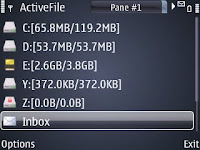
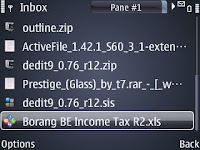
Well once you find the needed file using activefile, copying and transferring the files to other folder won't be that hard with the app's dual pane..just copy and paste!
Do you have other better ways? Let me know please.. :)
This message will pop up:
I normally will have to use my data cable to transfer these type of files directly into the folder needed and its always a hassle. I seldom share files with friends via bluetooth due to this matter as well. Now only i know of the simplest workaround for this issue and in fact using a simple software that i had been using all along - activefile.
If you need more info about activefile, please refer my previous post. Basically other file explorer software may also do the trick, i guess.
Using activefile, just simply browse to the "inbox" folder, and voila! there they are, the files are in there...Har har..


Well once you find the needed file using activefile, copying and transferring the files to other folder won't be that hard with the app's dual pane..just copy and paste!
Do you have other better ways? Let me know please.. :)
2009-07-07
NOKIA BARCODE READER NOT AS GOOD? (AS QUICKMARK)
If you have no idea of barcode reader, please refer my previous post HERE.
I tried this other software as suggested by a reader (yuc3697), Quickmark barcode reader and code generator and i can simply say i am impressed and it is by far better than nokia barcode reader. Simply put, the below are my findings:-
Quickmark barcode reader
As a comparison, i've used nokia barcode reader a lot and one limitation is the number of characters it can read. By using the same kaywa code generator, i find that the nokia barcode reader cannot read anything above 170 characters.
Using quickmark barcode reader, i was able to read up to 190 characters.
Quickmark code generator
As to earlier suggested kaywa code generator, i must say that this quickmark code generator is better simply because it does not require an internet connection - it is a software that can be installed on my PC! i find this most convenient.
Whats better is that by using this quickmark code generator along with the quickmark code reader, it can read up to 280 characters. :) superb!
i have been using these ever since. I use this barcode quite a lot since i need to sms addresses and details to colleagues and i cannot think of any other way more convenient than using this.
Let me know if you have different experience.
If you need to check it out further, please check their website HERE.
If you're using Nokia E71, you can download both the quickmark reader and generator HERE.
I tried this other software as suggested by a reader (yuc3697), Quickmark barcode reader and code generator and i can simply say i am impressed and it is by far better than nokia barcode reader. Simply put, the below are my findings:-
Quickmark barcode reader
As a comparison, i've used nokia barcode reader a lot and one limitation is the number of characters it can read. By using the same kaywa code generator, i find that the nokia barcode reader cannot read anything above 170 characters.
Using quickmark barcode reader, i was able to read up to 190 characters.
Quickmark code generator
As to earlier suggested kaywa code generator, i must say that this quickmark code generator is better simply because it does not require an internet connection - it is a software that can be installed on my PC! i find this most convenient.
Whats better is that by using this quickmark code generator along with the quickmark code reader, it can read up to 280 characters. :) superb!
i have been using these ever since. I use this barcode quite a lot since i need to sms addresses and details to colleagues and i cannot think of any other way more convenient than using this.
Let me know if you have different experience.
If you need to check it out further, please check their website HERE.
If you're using Nokia E71, you can download both the quickmark reader and generator HERE.
Subscribe to:
Posts (Atom)


 Posts
Posts


